Looking to add music to your Premiere Pro project? You’re in good company. From vlogs and short films to promotional content, the right soundtrack can elevate your video and capture your audience’s attention.
The best part? Adding audio in Premiere Pro is a simple process once you get the hang of it. Here’s a clear, step-by-step guide to help you along the way.
Step 1: Import Your Music File
Before you begin, make sure your audio file is saved in an accessible location on your computer.
To import it into Premiere Pro:
●Open your project.
●Navigate to the Project Panel.
●Right-click within the panel and select Import, or use the shortcut Ctrl+I (Windows) / Cmd+I (Mac).
●Locate your music file and click Open.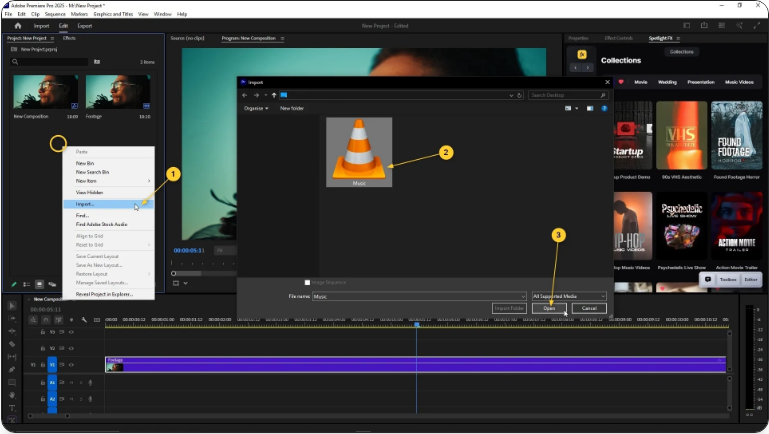
Your audio file will now appear in the Project Panel, ready to be used.
Step 2: Place It on the Timeline
With your music imported, it’s time to add it to your sequence.
●Click and drag the audio file from the Project Panel onto your timeline.
●If there’s no empty audio track available, simply drop the file below your video clips—Premiere Pro will automatically create a new track for it.
●Reposition the clip to start exactly where you want.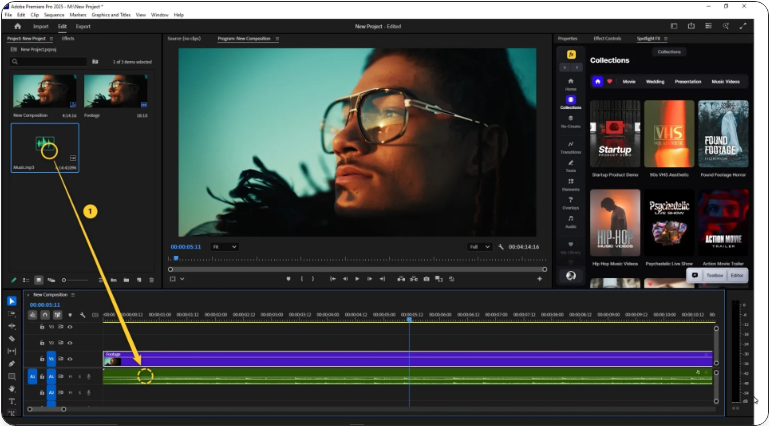
That’s all it takes! Your music is now part of your sequence.
Step 3: Adjust Volume and Timing
Fine-tuning is key to a professional sound mix. Here’s how to polish your audio:
●Volume Adjustment: Select the audio clip, go to the Effect Controls Panel, and adjust the volume level under the Volume settings.
●Fades: Apply smooth fade-ins or fade-outs using keyframes in the Effect Controls Panel, or use preset audio transitions like Constant Gain or Exponential Fade from the Effects Panel.
●Trimming: Shorten or extend your music by dragging the ends of the clip on the timeline.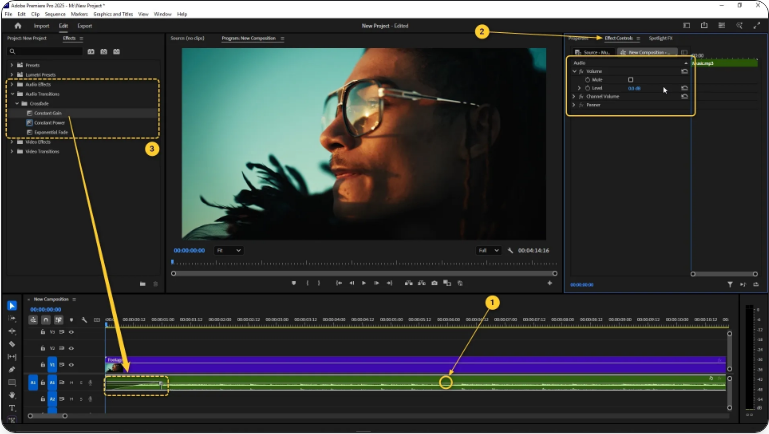
Take your time to sync the music with your video for the best viewer experience.
Wrapping Up
Adding music in Premiere Pro might seem challenging at first, but it’s a skill you’ll quickly master. After a few tries, you’ll be seamlessly integrating audio into all your projects.
A quick reminder: always ensure you have the right to use any music in your video. Stick to royalty-free tracks or properly licensed music to avoid copyright issues.
Now you’re all set—go create something amazing!
Frequently Asked Questions
Can I use music from YouTube in Premiere Pro?
Only if it’s explicitly royalty-free and available for download. The YouTube Audio Library offers many tracks you can use. Download the file to your computer, then import it into Premiere Pro using Ctrl+I (Windows) or Cmd+I (Mac).
Can I use music from Spotify in Premiere Pro?
No. Spotify streams encrypted files that can’t be imported into editing software. For legal alternatives, use licensed music from services like Epidemic Sound, Artlist, or other royalty-free platforms.How do I add more audio tracks in Premiere Pro?
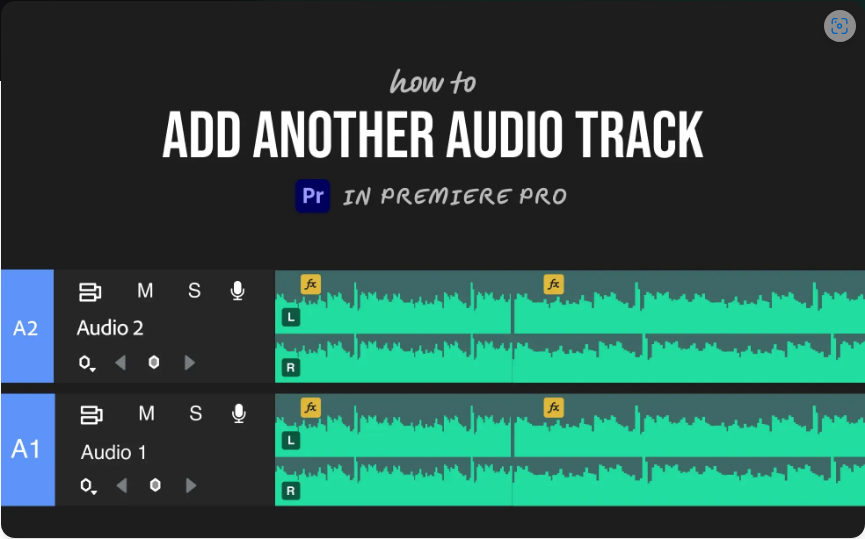
● To add new audio tracks:Right-click in the timeline.
●Select Add Tracks.
●Specify the number of audio tracks you need.
●Click OK.
Alternatively, drag an audio clip below your existing tracks—Premiere Pro will generate a new track automatically.
Where can I find music for my projects?
● Popular sources for royalty-free music include:YouTube Audio Library
●Artlist
●Epidemic Sound
●PremiumBeat
Always review the licensing terms to ensure your use is compliant, especially for public or commercial content.