
Is your After Effects project starting to stutter, freeze, or act strangely? Chances are, your cache files might be to blame. While these temporary files are meant to speed up your workflow, they can accumulate and end up slowing things down or causing errors.

The good news? Clearing your cache is a quick and simple fix. Here’s a step-by-step guide to help you do it.
1. Open the Preferences Panel
Start by opening After Effects. Navigate to:
●Edit > Preferences > Media & Disk Cache (Windows)
●After Effects > Preferences > Media & Disk Cache (Mac)
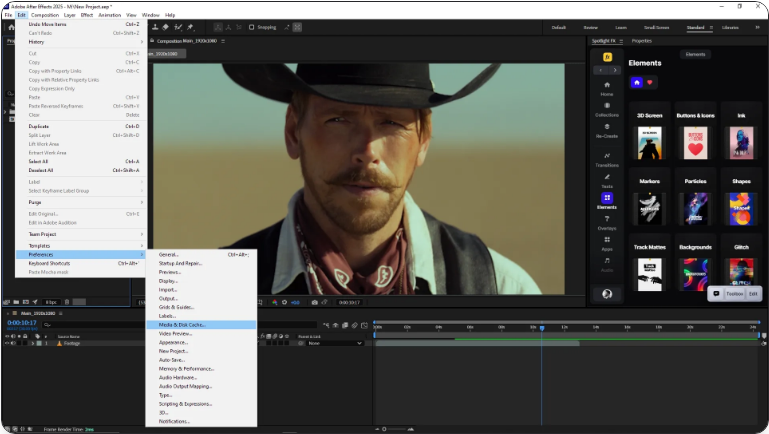
This is where you’ll find all the settings related to cache management.
2. Review the Cache Location
Before clearing anything, take a quick look at the current Disk Cache Location. You’ll see a file path displayed—this is where all your cached files are stored. You might want to note this down in case you want to verify later that the files have been removed.
3. Empty the Disk Cache
Click the Empty Disk Cache button. A confirmation message will pop up—click OK to proceed.
This step deletes all the cached preview files from your hard drive. Depending on how much data has accumulated, this could take a few seconds or several minutes.

4. Clear the Memory Cache
While you’re at it, don’t forget to clear the memory cache, which is stored in your RAM. To do this, go to the main menu and select:
●Edit > Purge > All Memory & Disk Cache (Windows)
●After Effects > Purge > All Memory & Disk Cache (Mac)

This will remove temporary session data like rendered previews and undo history.
5. Restart After Effects
Once you’ve cleared both caches, close and restart After Effects. This ensures everything is refreshed and running smoothly for your next session.
Frequently Asked Questions
How do I clear the memory cache in After Effects?
Go to Edit > Purge > All Memory & Disk Cache (Windows) or After Effects > Purge > All Memory & Disk Cache (Mac). This clears temporary data stored in RAM.
Is it safe to delete the After Effects disk cache?
Absolutely. Deleting the disk cache only removes temporary preview files. Your original project files, compositions, and assets remain untouched.How do I clear the Adobe cache for After Effects?
1. While each Adobe app handles cache differently, in After Effects you should:Go to Preferences > Media & Disk Cache and click Empty Disk Cache
2.Then use Purge > All Memory & Disk Cache from the main menu
This clears both disk and memory cache.Where is the After Effects cache located?
You can find the cache folder by going to Preferences > Media & Disk Cache. The directory path is shown under Disk Cache Location. You can open this folder manually if needed.