Exporting videos directly from After Effects is straightforward, and I’ll walk you through saving your project as an MP4, creating a custom render preset, and even breaking down Adobe Media Encoder—plus why it’s a total lifesaver for busy workflows.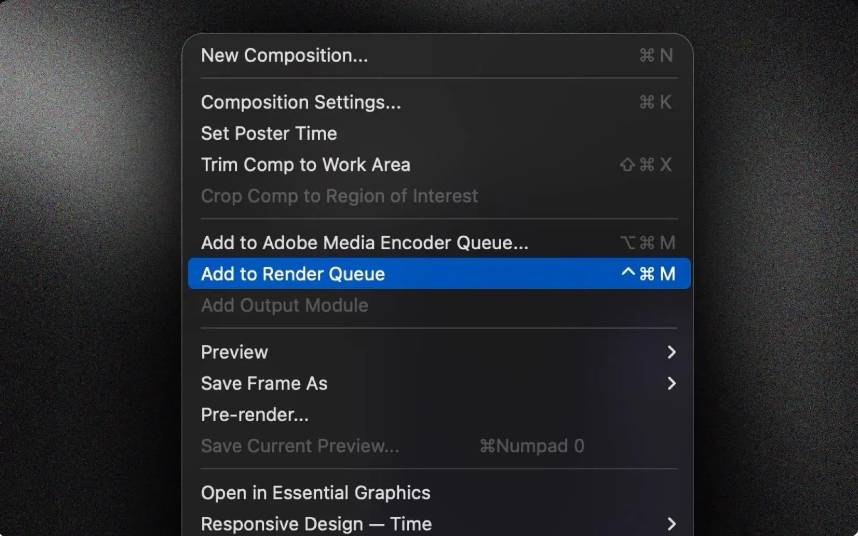
Step 1: Set Your In and Out Points
Before adding your composition to the Render Queue, take a minute to set your In and Out points. This ensures you only render the footage you need, no extra frames.
1.Move the playhead to where you want your video to start (usually the beginning) and press Ctrl+I (Windows) or Cmd+I (Mac) to set the In point.
2.Drag the playhead to your desired end point and press Ctrl+O (Windows) or Cmd+O (Mac) to set the Out point.
Now you’ve locked in the exact duration for rendering.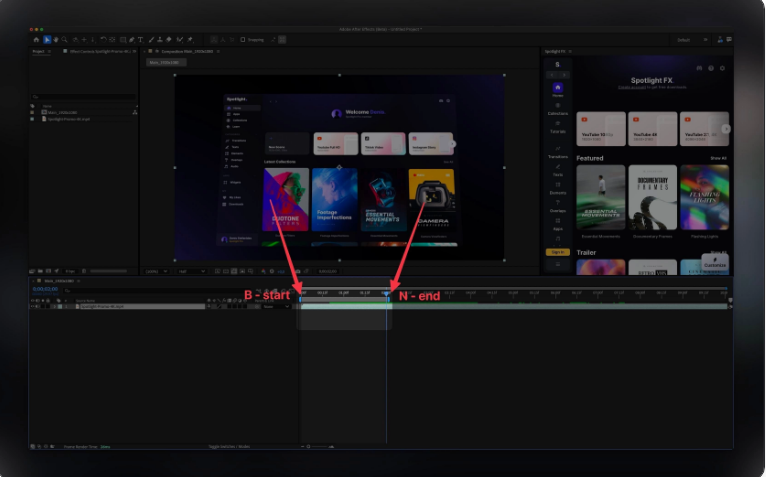
Step 2: Add to the Render Queue
Next, get your composition into the Render Queue—here’s how:
1.Go to the top menu bar, click Composition, then select Add to Render Queue.
2.For a faster shortcut, press Ctrl+M (Windows) or Cmd+M (Mac).
The Render Queue panel will pop up at the bottom of your screen—this is where all the export magic happens.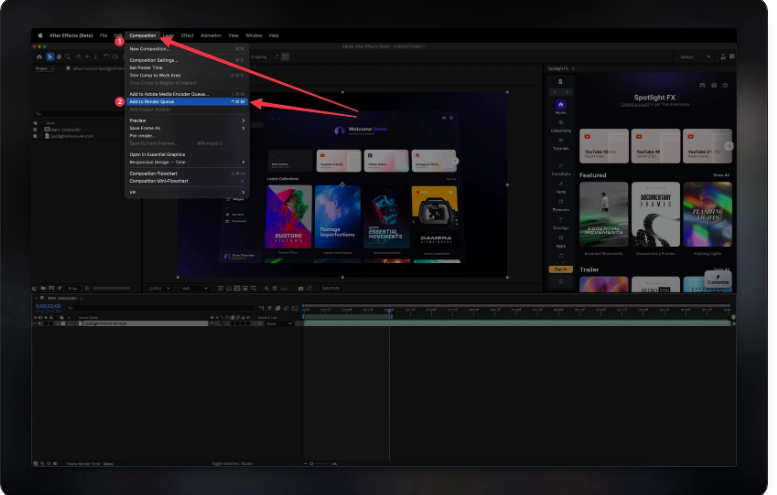
Step 3: Customize Your Render Settings
The Render Queue has several settings, but don’t overcomplicate it. The default Best Settings option delivers full-quality results, which works for most projects.
1. If you’re short on time or need a smaller file:Click on Best Settings to open the settings menu.
2.Lower the resolution to Half Resolution—this speeds up rendering and reduces file size without losing too much quality.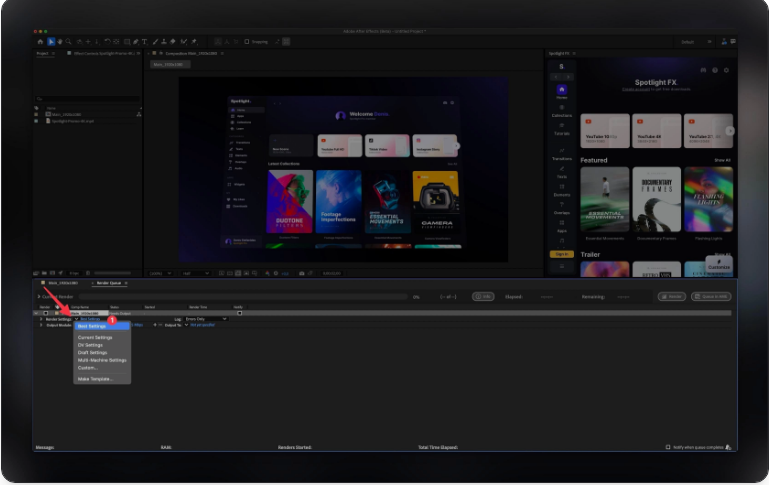
Step 4: Choose the Output Module
This is the most important step for getting an MP4. In After Effects 2025, the default Output Module setup usually works great: H.264 – Match Render Settings – 15 Mbps.
For 4K projects, bump up the bitrate to 30–40 Mbps to keep that sharp 4K quality. Here’s how to adjust it:
1.Click on your current preset (e.g., “H.264 – Match Render Settings – 15 Mbps”).
2.Select Format Options from the dropdown.
3.Adjust the Mbps: Use 15–20 Mbps for HD (1920×1080) and 30–40 Mbps for 4K (3840×2160).
4.Check the audio settings: Leave it on Audio Output Auto if you need sound, or switch to Audio Output Off if your video is silent.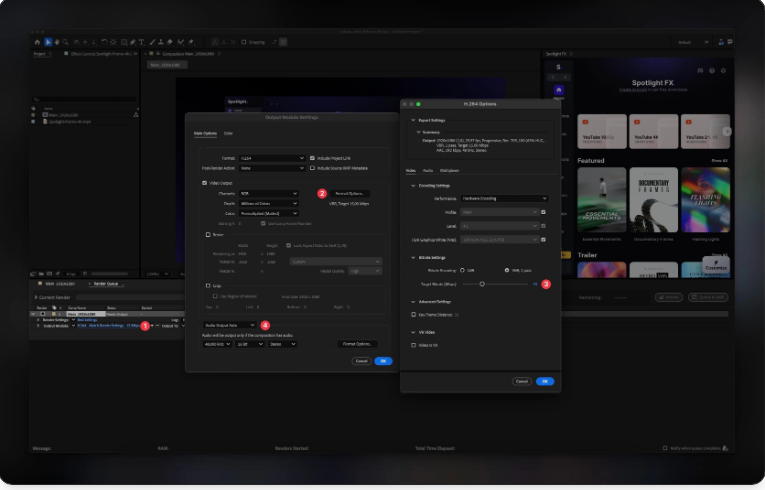
Step 5: Choose the Output Location
Almost done—now pick where to save your MP4.
1.Look for the “Output To” section in the Render Queue.
2.Click the Not Yet Specified text next to it.
3.Select a folder on your computer, then click OK.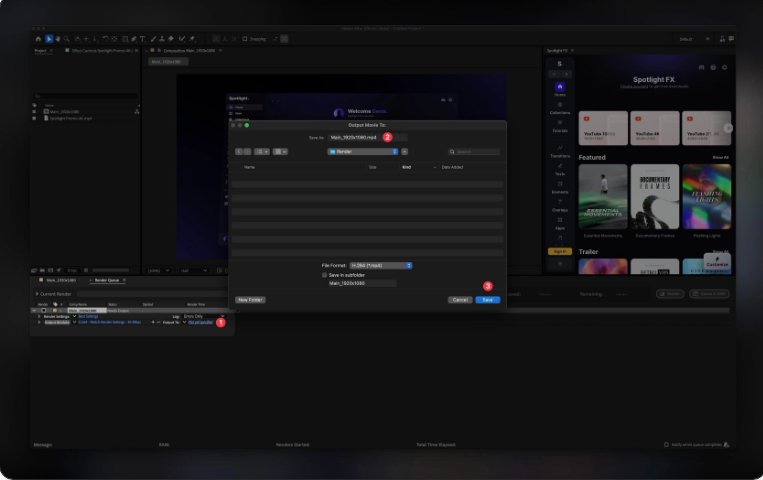
Step 6: Hit Render
Once everything’s set, click the Render button. A progress bar will appear so you can track how long it’ll take.
Render time depends on your project’s complexity—simple animations might take a few minutes, while heavy projects with effects could take longer.
Heads up: While rendering, After Effects will be tied up—you can’t edit or work on other projects until it’s finished.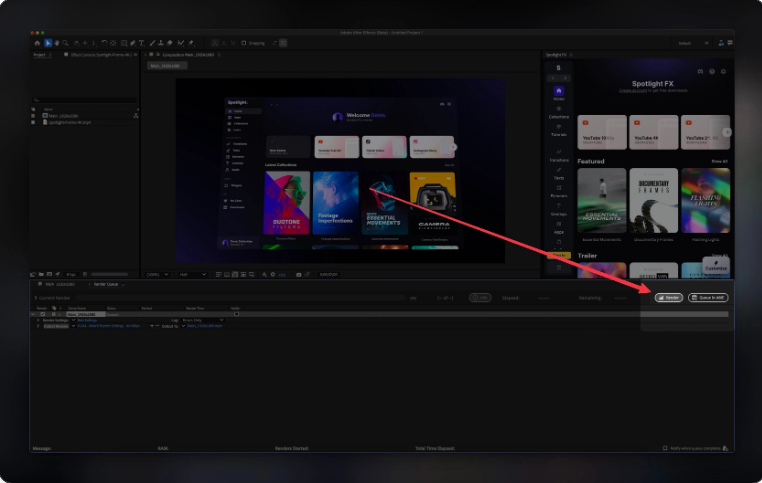
Step 7 (Optional): Save Your Render Settings as a Preset
If you use the same export settings often, save them as a preset to cut down on repeat work.
1.In the Output Module section, click the small dropdown arrow.
2.Select Make Template at the bottom of the menu.
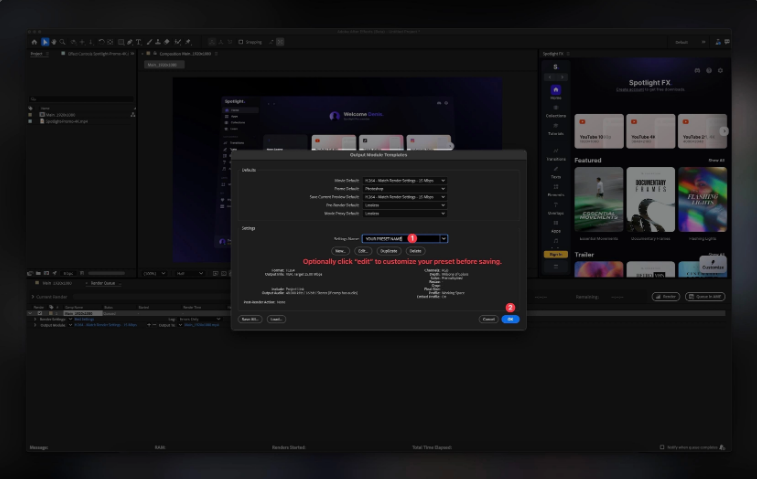
3.Give your preset a clear name (e.g., “HD 1080p 20 Mbps”) and click OK.
Next time you export, just select your preset instead of adjusting settings from scratch.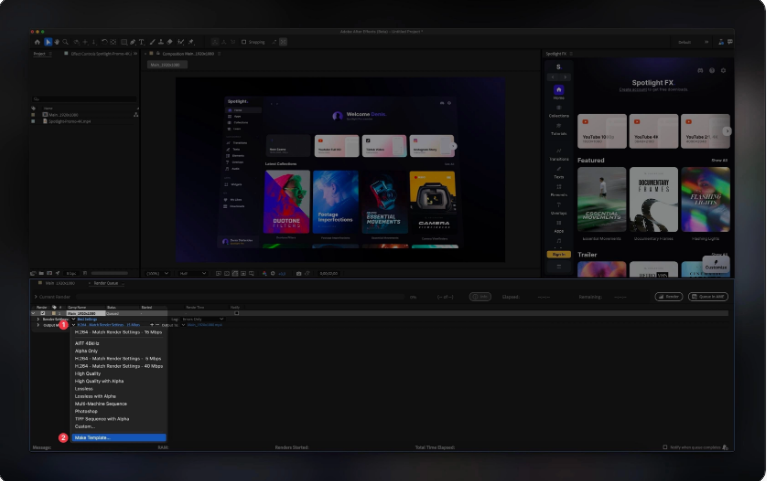
Bonus: Render Video Using Adobe Media Encoder
Want to keep editing while your video renders? Adobe Media Encoder is the solution. It lets you work in After Effects while rendering runs in the background—perfect when you’re crunched for time.
1.In the Render Queue, click Queue in AME (next to the Render button). Or go to Composition > Add to Adobe Media Encoder Queue.
2.When Adobe Media Encoder opens, select H.264 as the format.
3.Click the Start Queue button (the play icon in the top-right corner).
That’s it—you can go back to editing in After Effects while Media Encoder handles the export.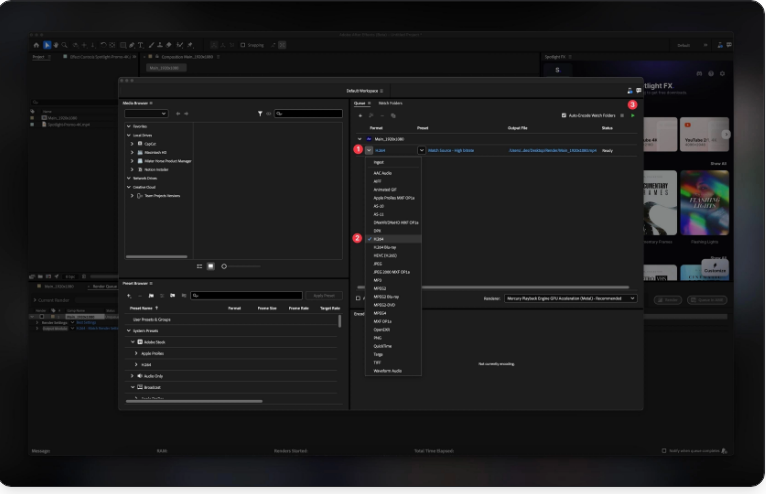
Quick Tips
●Direct Rendering vs. Media Encoder: Rendering straight from After Effects ties up the program—no multitasking. Media Encoder lets you keep editing, which is a huge win when juggling deadlines.
●File Size Hacks: MOV files from After Effects can be huge. You could convert them to MP4 later, but that’s an extra step. Media Encoder cuts this out by creating a smaller MP4 file directly.
Final Thoughts
Exporting from After Effects might seem a bit involved at first, but after doing it 2–3 times, it’ll become second nature. The key is to pick settings that fit your needs—whether you want speed, small file size, or top-tier quality. Happy animating!
Frequently Asked Questions
How do I Export from Adobe After Effects?
1.First, select your composition in the Timeline panel.
2.Go to File > Export > Add to Render Queue.
3.In the Render Queue, click Output Module and choose H.264 as the format.
4.Pick a preset (e.g., 5 Mbps for small files, 40 Mbps for 4K quality) based on your needs.
5.Click Render.
How do I Export from After Effects to MP4?
You can export MP4s directly using H.264 in the Render Queue—no Adobe Media Encoder needed:
1.Add your composition to the Render Queue (File > Export > Add to Render Queue).
2.Click Output Module, then select H.264 as the format.
3.Choose a preset like “H.264 – Match Render Settings – 15 Mbps”.
4.Set your output location and click Render.
How do I save a File in Adobe After Effects?
To save your editable project file (not the exported video):
1.Go to File > Save As > Save As….
2.Choose a name and folder for your .aep file.
3.Click Save.
This saves your project so you can edit it later—It’s not the final video file.
How do I Export from After Effects to MOV?
To export a high-quality MOV file:
1.Add your composition to the Render Queue (Composition > Add to Render Queue).
2.Under Output Module, select QuickTime as the format.
3.Open Format Options and choose a codec like Apple ProRes or Animation (great for editing workflows later).
4.Click Render.